WeSettle, step by step
WeSettle helps a group of friends decide when and where to meet. Everyone ticks the dates and places that work for them, the vote closes on its own, and the result shows up on everyone's phone.
Create your account
You need an email address and a password. WeSettle is on Android.
Sign up
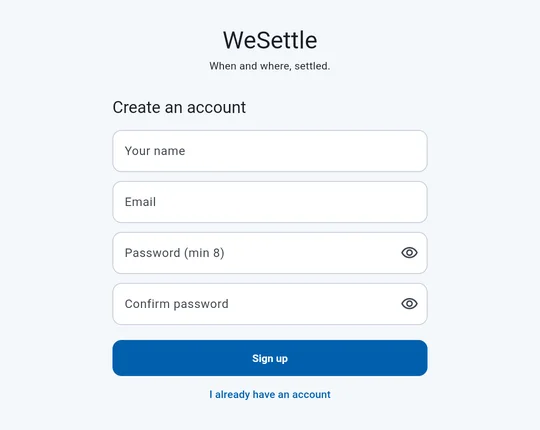
- Open WeSettle and tap Create an account.
- Enter your name as your friends know you, your email and a password of at least 8 characters.
- Tap Sign up. We send you an email with a confirmation link.
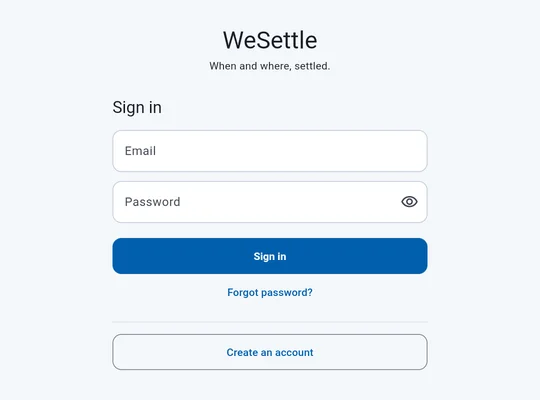
- Open the link, then come back to the app and sign in with your password.
The confirmation link only confirms your address. It never signs you in, so a forwarded email can't give anyone access to your account.
No email? Check your spam folder, or tap Resend confirmation email. If the email already has an account, the app tells you and offers Recover password.
Find your way around
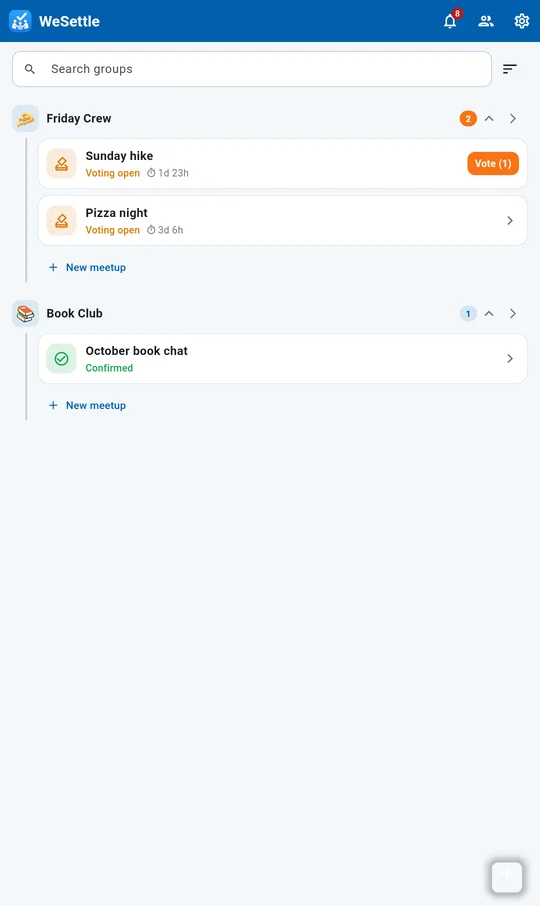
Home lists your groups, with each group's meetups underneath.
Home
- Tap a group's arrow ⌄ to show or hide its meetups. The app remembers your choice.
- An orange number means meetups where you haven't voted yet. The orange Vote button takes you straight to the ballot.
- Each meetup shows its state and, while voting is open, the time left.
- With two or more groups you get a search box and a sort button: Pending votes first, or Alphabetical.
- Top bar: the bell opens notifications, the people icon opens the full group list, the gear opens settings.
- The + button at the bottom right creates a New meetup or a New group.
Notifications
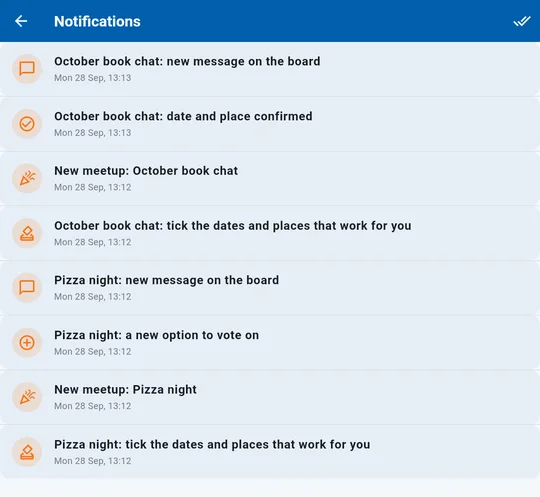
You get a push notification when:
- a new meetup is published,
- someone adds a date or place to vote on,
- the deadline is close and you haven't voted,
- date and place are confirmed,
- someone writes on a meetup's board.
The bell keeps the list. Tap a notification to open the meetup. Use ✓✓ to mark everything as read.
Groups and invites
A group is your crew: friends, a team, coworkers. Every meetup belongs to a group, and every member of the group takes part in its meetups.
Create a group
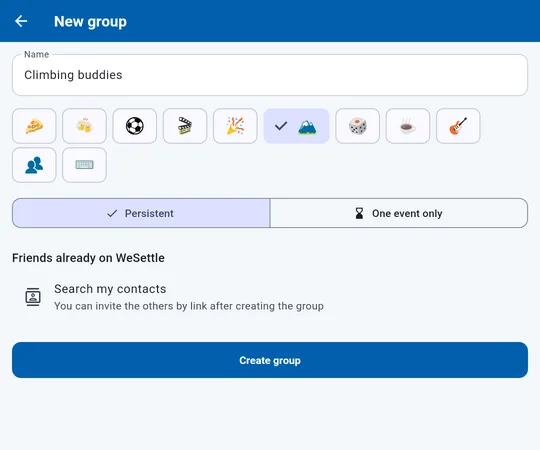
- Tap + on Home, then New group.
- Give it a name and pick an emoji. Admins can add a photo later.
- Choose Persistent for a group you'll use again, or One event only for a single outing.
- Optionally tap Search my contacts to add friends who already use WeSettle, then Create group.
Contact search compares scrambled (hashed) emails. Your contacts' addresses never leave your phone in clear text.
Add members
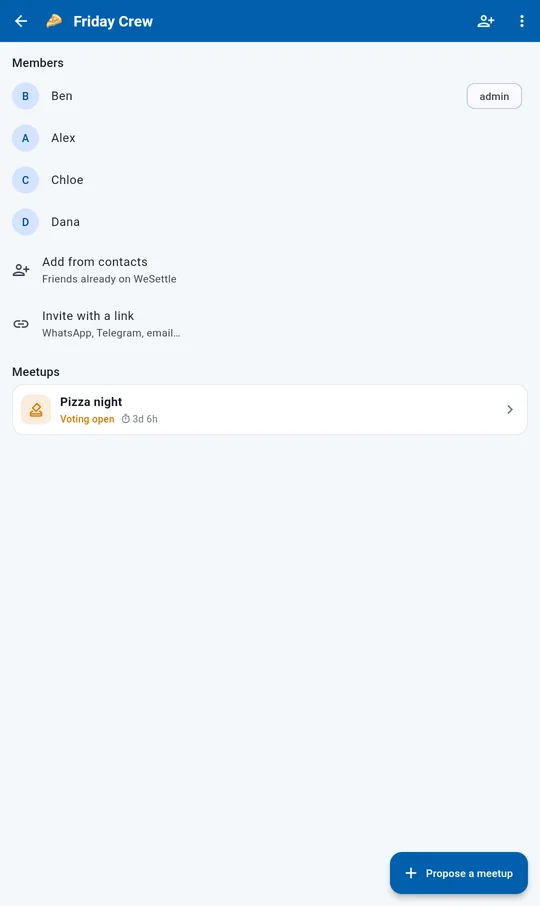
- Add from contacts adds friends who are already on WeSettle.
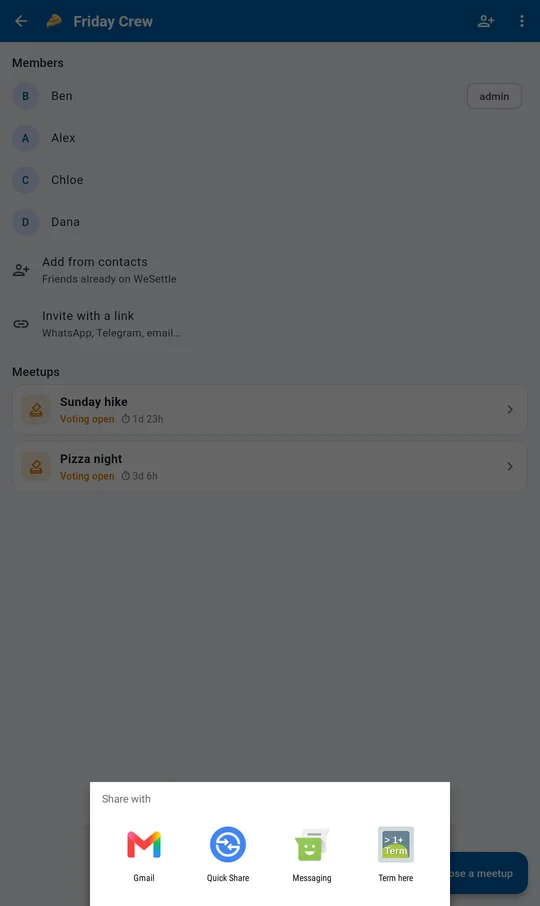
- Invite with a link works for anyone. Share it on WhatsApp, Telegram or by email. Whoever opens it joins the group once they're signed in. Links expire after 7 days.
- New members also join the group's meetups that are still open for voting.
Admins
The person who creates a group is its admin. Admins can rename the group, change its photo, make other members admin, remove members and delete the group. A group always keeps at least one admin.
Organize a meetup
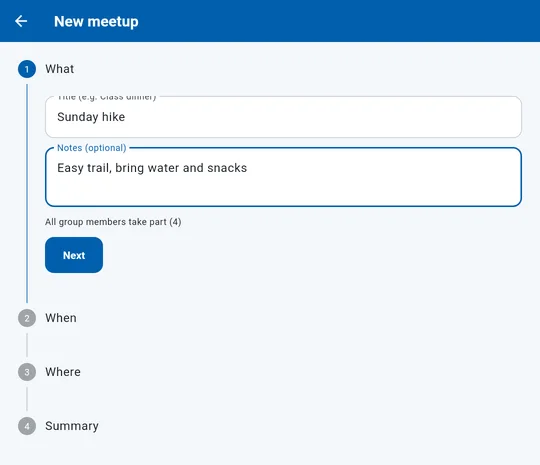
Whoever creates a meetup is its organizer. Setting one up takes four short steps.
What and when
- In the group tap Propose a meetup, or use + on Home and pick the group.
- What: a title and optional notes. All group members take part.
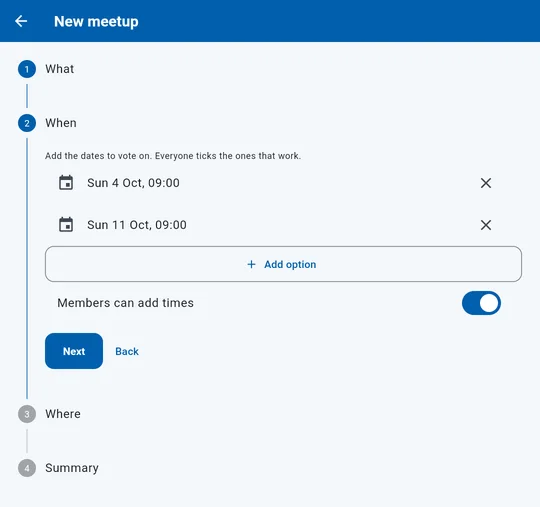
- When: tap Add option for every date and time you want to put to the vote. Add as many as you like.
- Leave Members can add times on if others may suggest more dates.
Where
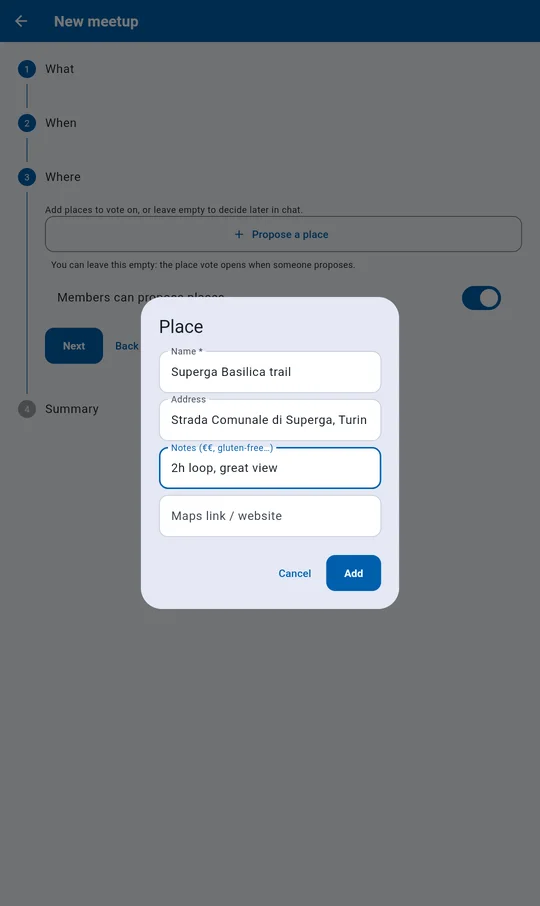
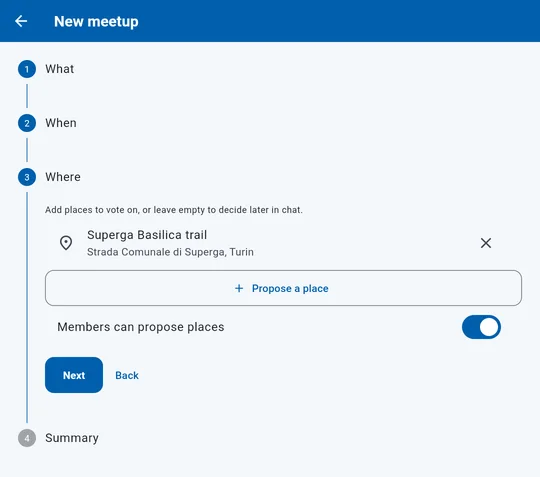
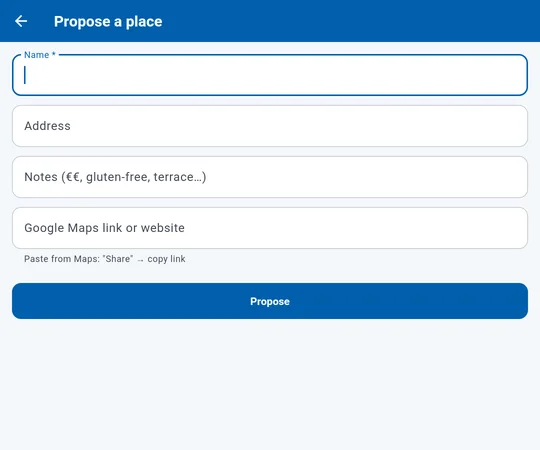
- Tap Propose a place and fill in the name. Address, notes and a link are optional.
- To use a Google Maps link, open the place in Maps, tap Share, copy the link and paste it here. Navigate then opens exactly that place.
- You can skip places. The place vote then opens when someone proposes one, or you can agree on it in the board.
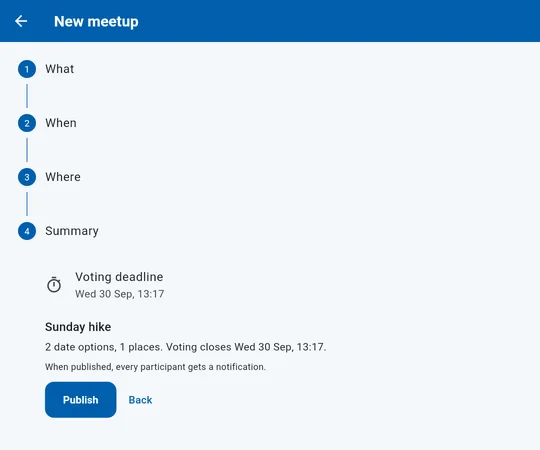
Deadline and publish
- Summary: check the voting deadline and tap it to change it.
- Tap Publish. Every member gets a notification and the vote opens.
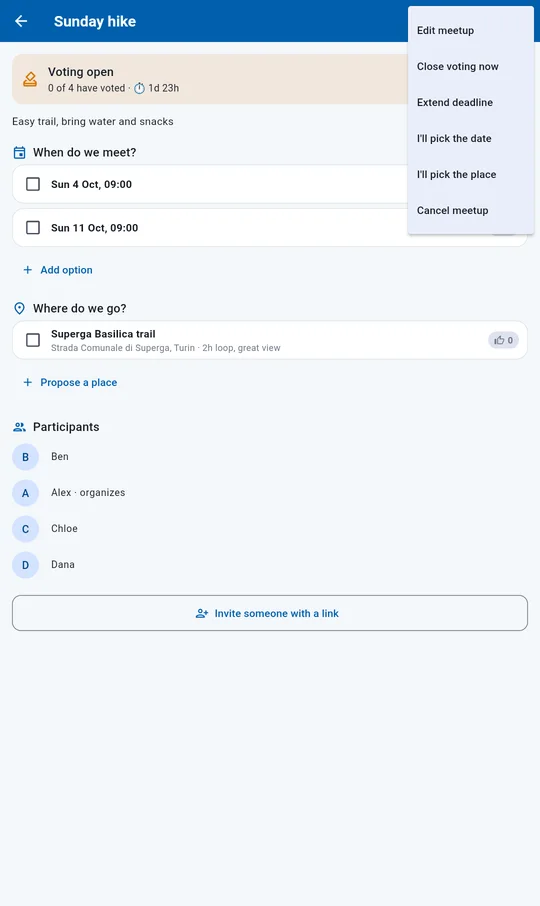
Organizer menu
On the meetup page the ⋮ menu lets the organizer:
- edit the title and notes,
- Close voting now,
- Extend deadline,
- pick the date or place themselves,
- Cancel meetup.
Group admins have the same powers.
Vote
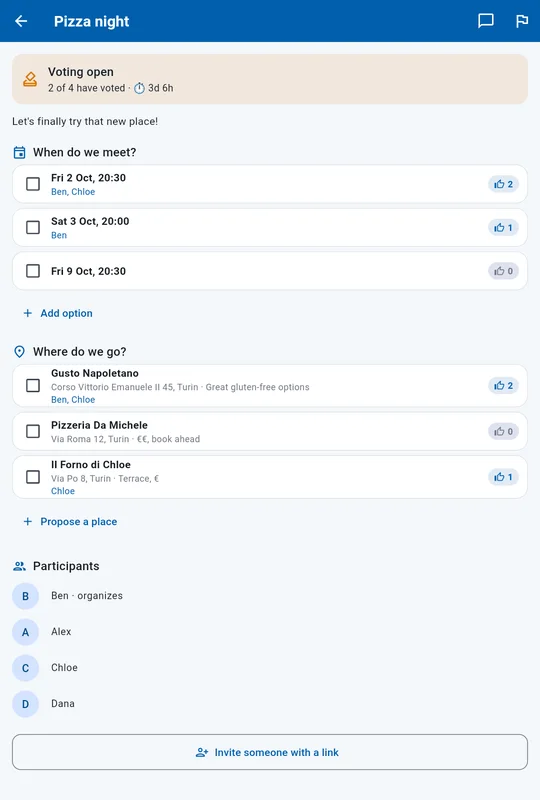
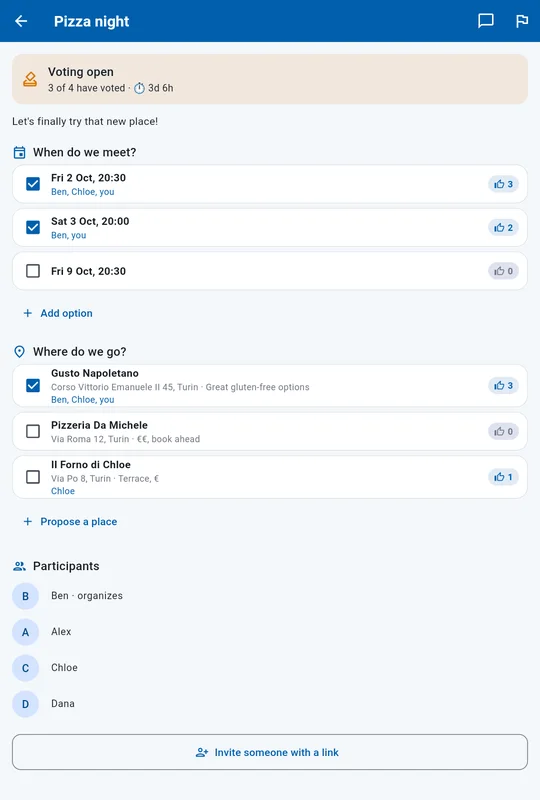
One page, two questions: When do we meet? and Where do we go? Voting takes a few seconds.
Tick what works for you
- Tick every date you can make and every place you'd be happy with. An unticked option counts as no.
- Votes save as soon as you tap. Change them any time until voting closes.
- The thumb counter shows how many said yes. The names underneath show who.
- The banner at the top shows how many members have voted and the time left.
- Add option and Propose a place add choices for everyone, if the organizer allows it. Everyone is notified.
Only people who tick the winning date count as coming. If you don't vote, you're not counted.
Propose a place
Only the name is required. Two places can't have the same name, and a meetup holds at most 10 places.
The board
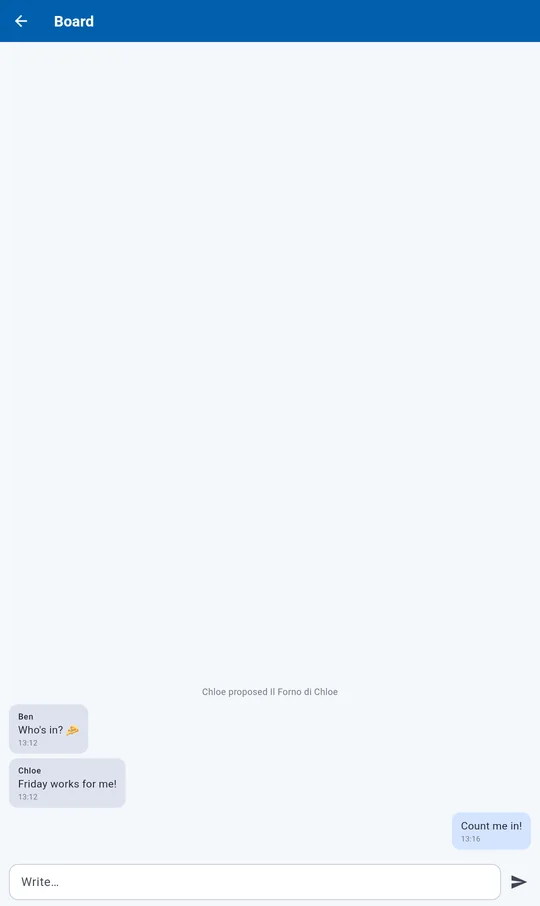
Tap the speech bubble at the top of a meetup to open its board. It's a simple chat of up to 280 characters per message. WeSettle also posts updates here, such as a new place or the final result.
How the result is picked
Nobody has to call it. WeSettle closes the vote and announces the result.
When voting closes
At the deadline, or about five minutes after the last member has voted, or when the organizer taps Close voting now.
Winning date
The date with the most yes votes wins. It needs at least 2 yes votes.
Winning place
The place with the most yes votes wins. With no places proposed, the meetup is confirmed with the date only.
Tie
If two options have the same number of yes votes, the organizer gets a notification and picks one.
No winner
If no date gets 2 yes votes, the organizer can extend the deadline or pick a date.
The confirmed meetup
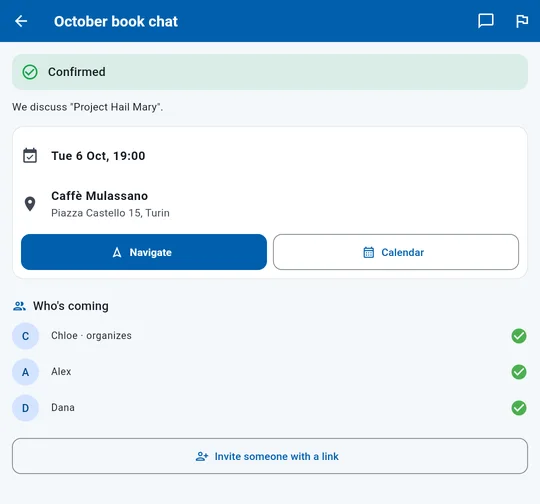
- The card turns green and shows date, time and place.
- Navigate opens the place in Google Maps.
- Calendar adds the meetup to your phone's calendar.
- Who's coming lists everyone who ticked the winning date.
- A few hours after it starts, the meetup moves to Past.
Settings and privacy
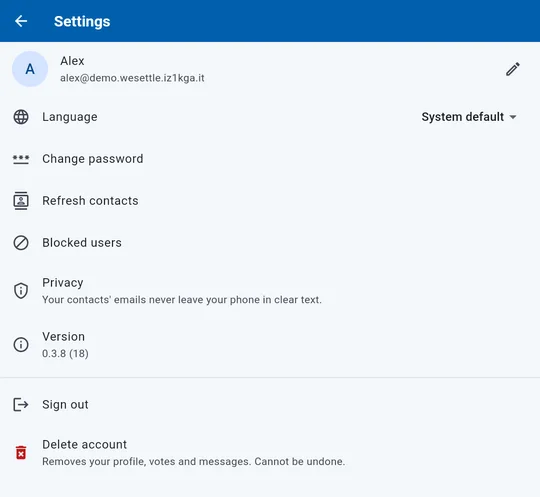
- Profile: tap the pencil to change your name.
- Language: English, Italiano, or the phone's language.
- Change password. If you're signed out, use Forgot password? on the sign-in screen instead.
- Refresh contacts finds friends who joined recently.
- Blocked users: undo a block. To report a meetup, tap the flag at the top of it. To report a group, use its ⋮ menu. To report or block someone, long-press their message on the board.
- Delete account permanently removes your profile, votes and messages. Groups and meetups you organize pass to another member.